

|
Importing Geodata into BricsCAD Imports spatial data into new or existing BricsCAD drawings as BricsCAD objects and Extended Entity Data (EED) Spatial Manager™ for BricsCAD imports geodata into new or existing BricsCAD drawings as BricsCAD objects and Extended Entity Data (EED) using a powerful wizard that allows the user to select all necessary import parameters in order to obtain differentiated geo-information in a CAD drawing. Batch import, automatic layering, filling polygons, blocks by data values and associated attributes, labelling, elevation, thickness or geo-filter are just some of the app's features when importing from geo-files, data servers, data stores, etc. (List of data providers) |
 |

▶️ Objects that have been imported into a new or open drawing
Import operations can be carried out in the current BricsCAD drawing or in a new drawing. The app will automatically open a new drawing if required

▶️ Basic target level or new target level using a field value
Define a common target level or select a field from the incoming data source to use its values as the target level for each newly imported object

▶️ Use field-based blocks for points and centroids
When importing point element or polygon element centroids, choose between BricsCAD point or block references. If you use blocks, you can select a field to choose the names of the block references to be inserted and map fields from the incoming data to the attributes contained in the block definitions.

Block insertion parameters from field values
You can also use fields from the incoming data to define parameters for inserting blocks, such as scaling and rotation

Polygon fills and transparencies
Fill polygon areas with BricsCAD hatches and define the hatch parameters such as pattern, angle and scale. Apply transparency layers to the hatches
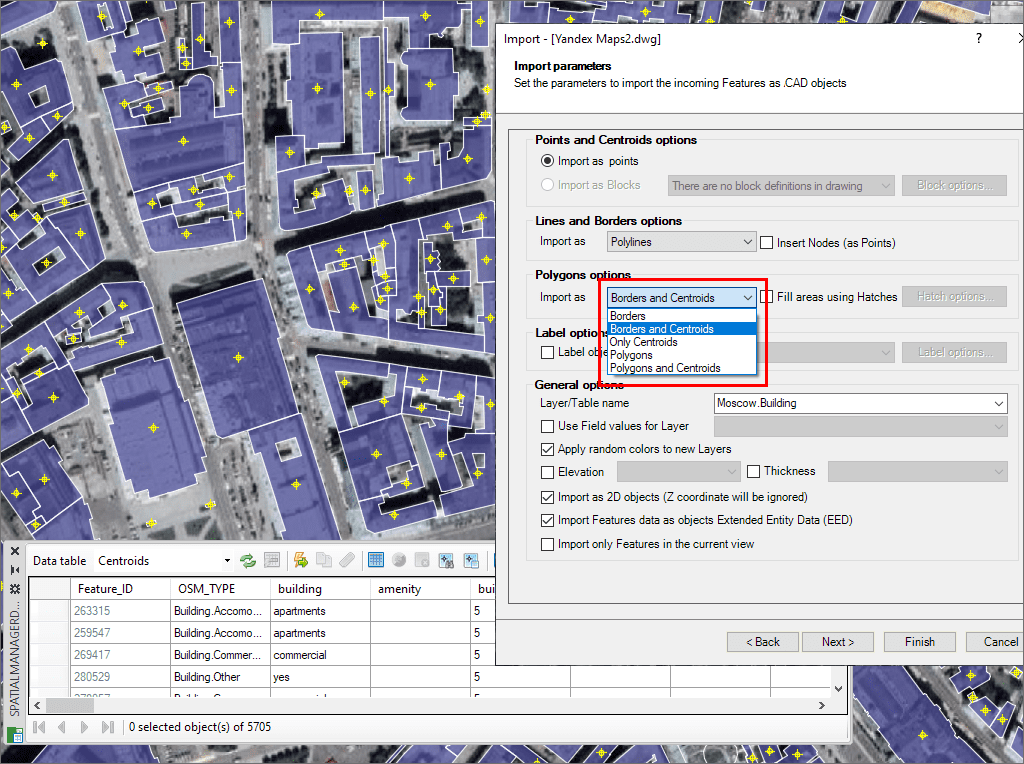
Polygon Centroids
Draw optional centroids when importing polygon elements using BricsCAD point or block references
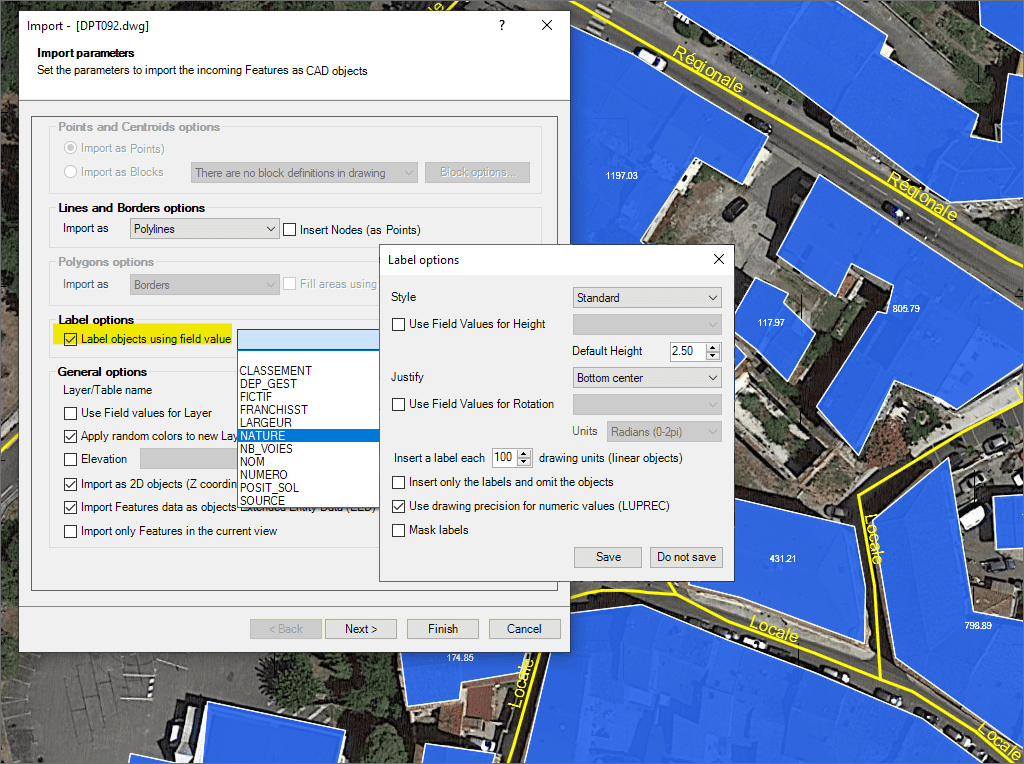
▶️ Labelling Objects during Import
Select a data field to label any object: point type, linear type, or polygonal type (centroids). Intelligent text positioning for objects of linear type. The properties for the new texts (rotation, height, etc.) can be taken from other data fields.

Geo-Filter
Import only the objects in the current view

Height and Thickness from Field Values
Use field values from incoming data to define the height and/or thickness for the new objects

Import data from tables as XDATA (EED)
Import data from elements as XDATA (EED) to create “smarter” BricsCAD drawings
* Only available in the Standard and Professional Edition

Accelerate processes by skipping certain assistant steps
Skip unnecessary steps for a specific job and proceed directly with the execution of the import process to follow all the guidelines set by the import assistant

Use the intuitive palette options or the quick import function
Use the context menu of a specific data source to import from this source, or execute the import command, which allows you not to open the app's palette if you do not wish to do so

Batch Import
Import all files from a folder at once. If required, separate the contents of each file into different layers
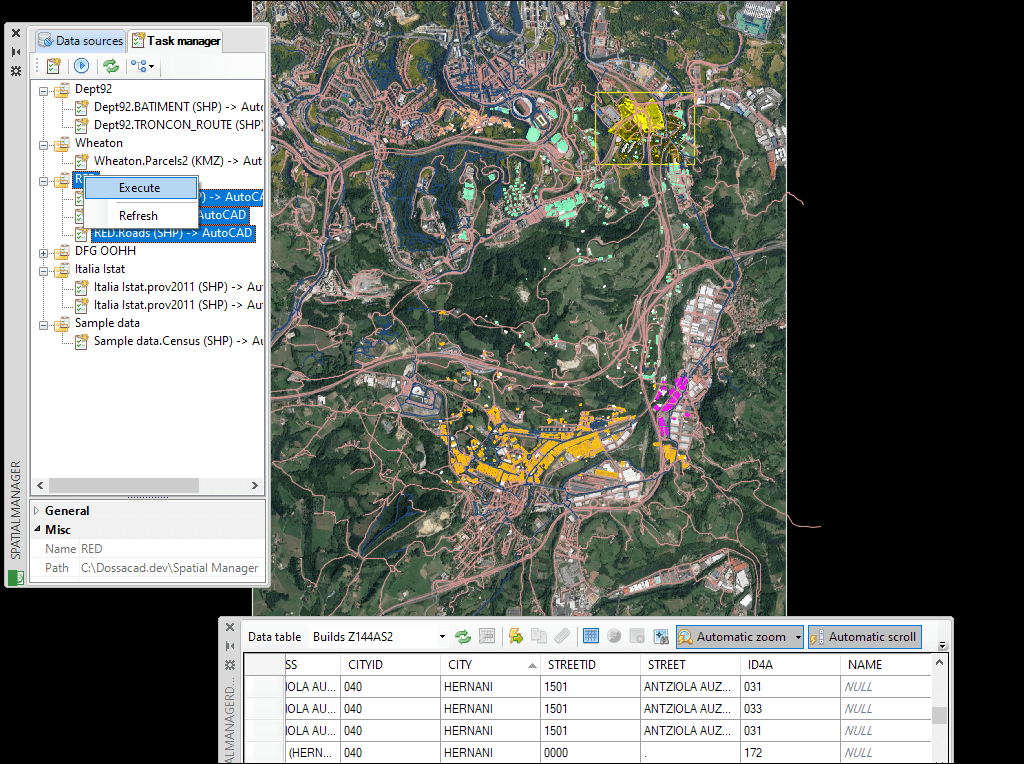
▶️ Import Tasks
With tasks, you can repeat any import process as often as you like without having to re-enter the parameters. Manage and execute tasks in the main palette of the app
*Available in the Professional Edition only
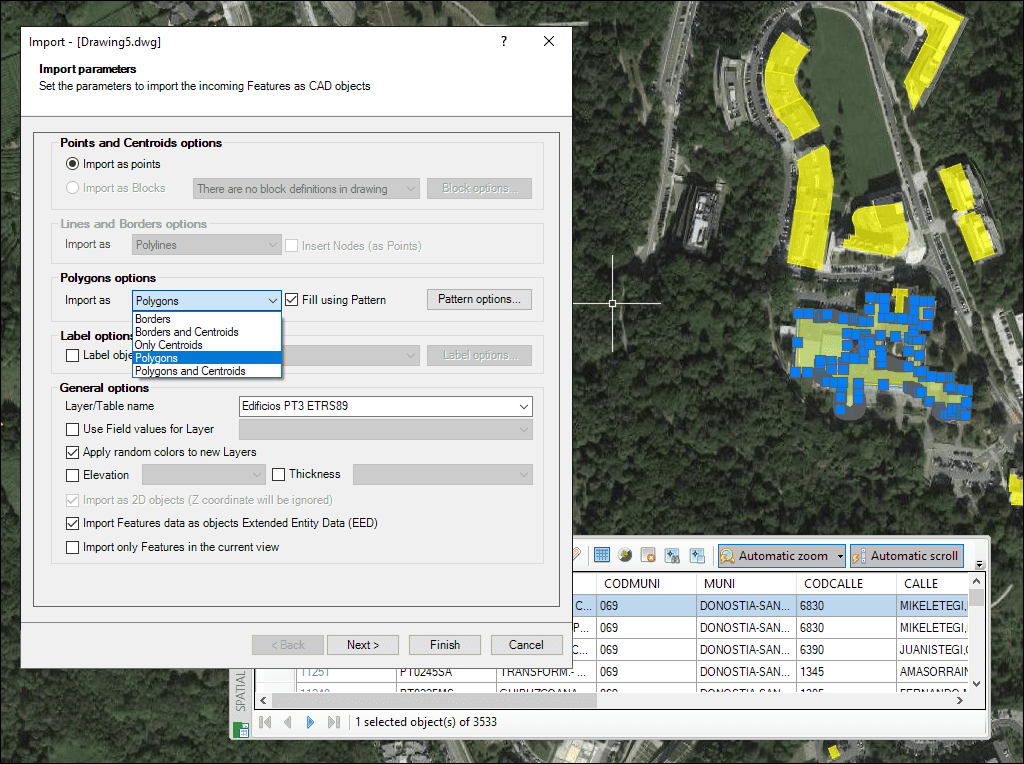
MPolygons
Option to select "polygons" (MPolygons) as the object type for importing polygons ()


-Single User Version- Spatial Manager™ for BricsCAD is a powerful BricsCAD plug-in for BricsCAD users who need to import, export, convert and manage spatial geodata in a simple, fast and cost-effective way. This includes many features that were previously unavailable in BricsCAD. It is delivered as a compact app that runs within BricsCAD and enables the user to import and export spatial geodata between BricsCAD drawings and spatial geofiles, data servers or data stores, display background maps, manage alphanumeric data and data tables, create terrain models and contours, search for locations, convert coordinate systems and many other geographic functions. The Professional version includes: Importing geodata into BricsCAD Exporting geodata from BricsCAD Coordinate transformation Updated V9 Coordinate system for drawing conversion Background maps Updated V9 Publishing to Google Earth Thematic maps Data management, query and editing Data grid Field calculator Spatial analysis Drawing tools New V9 Image tools New V9 Location tools Google Street View integration Affine command New V9 Label objects Updated V9 Terrain Import tasks Multi-language option Perpetual licence Support/updates are included for one year